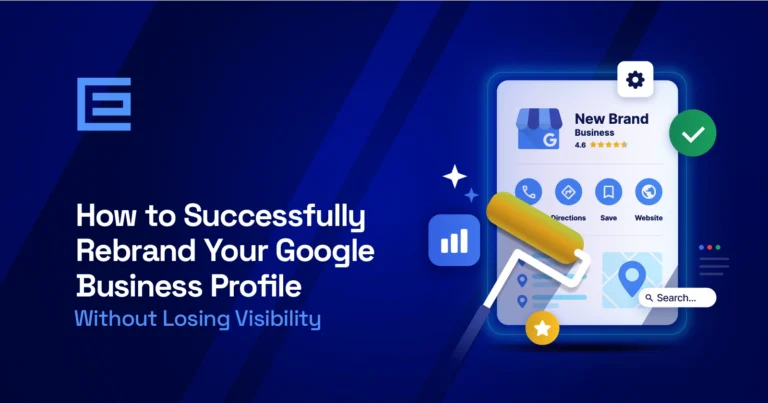
Rebranding? New name? Here’s how to keep your reviews, ratings, and local SEO history intact while changing your business name on your Google Business Profile.
Steps to Take to Rebrand on Your Google Business Profile
1) Update your website and citations first
Google cross-references your name, address, and phone number (NAP) across the web. Before changing your Google Business profile, make sure these are updated consistently:
- Website title tags, footer, and About page
- Yelp, Facebook, and other directory listings
- Exterior signage if applicable
- Your domain name, if that’s also changing
Important: Do not create a new profile
This is the most common and costly mistake business make. Starting a new profile means losing all of your reviews and local SEO history. Always edit the existing one.
2) Edit your business name directly in your profile
Go to your Google Business Profile, click Edit profile, and update your business name. Google will review the change within a few days typically. Your reviews and ranking history remain attached to the same profile throughout.
3) Update all related information at the same time
While you’re editing, go ahead and refresh everything to match your new brand:
- Website URL
- Business description (including any branded keywords)
- Logo and cover photo
5) Confirm your listing on Google Maps
Once the name change is approved, search for your business on Google Maps to confirm the update appears correctly. If you spot a duplicate listing under the old name, request its removal via Suggest an edit or from your dashboard.
6) Watch for re-verification requests
Significant changes like a business name can trigger Google to re-verify your listing. Check your email and dashboard closely and if a request arrives, respond to it as quickly as possible.
It is important to understand that during re-verification, your listing usually stays visible but in a limited state: photos may be removed and edits won’t reflect until the process is complete. In some cases the listing can be temporarily hidden, so speed matters.
Important: Reply to Reverification Requests ASAP
It is vital for businesses to reply to Google Business reverification requests as soon as possible to ensure your listing remains intact.
Google Business Verification Methods
Google uses verification to confirm the person managing the listing is the actual owner or authorized representative and preventing fraudulent or hijacked listings.
Video verification
You will need to record a short video showing your location, signage, and proof of ownership. This tends to be the most common method requested.
A code is sent to a verified business email. Available for certain account types.
Postcard by mail
Google mails a 5-digit code to your business address. Arrives in 5–14 days.
Live video call
A Google rep joins a call and asks you to walk through the physical location in real time.
Phone or text
A code is sent to your business phone number. Only available for eligible businesses.
Instant verification
Available if your website is already verified via Google Search Console — no extra steps needed.
Frequently Asked Questions
Your listing typically stays visible in search, and reviews remain intact. However, photos may be temporarily removed and pending edits won’t go live until verification is complete. In some cases the listing can be hidden from public view entirely, which is why responding to verification requests quickly is so important.
Your profile becomes fully active. The listing can appear prominently in Google Search and Maps, and you’ll be able to edit business info, respond to reviews, post updates, and view analytics. Unverified listings may still appear in search but with limited functionality and less visibility.
Skipping verification puts you at risk of losing control of your listing and someone else could claim it. Google may also limit your profile’s visibility, and changes you make may not take effect reliably. Keeping your listing verified is essential for maintaining an accurate, trustworthy presence on Google Maps.
Are You Planning to Rebrand but Afraid to Lose Your Googe Business Profile?
We can help. Not only does rebranding impact your Google Business page, but rebranding sometimes includes a fresh, new website design. TheeDigital can help with both.
If you are looking for professional assistance with design, or ensuring your Google Business listing remains intact, please call 919-341-8901 or schedule a time to talk with one of our website domain experts.
Tags: Search Engine Optimization • Google

Melissa Read
Melissa is Lead Project Manager at TheeDigital with over 25 years of eCommerce, web design and project management skills, along with design, development and copywriting. See all posts written by Melissa.